Sidebar Filter
Options
The sidebar filter on Our Classes page includes different custom fields from Advanced products plugin.
- Please go to Appearance > Widgets > Toggle the Inventory Sidebar
- Click on "+" icon to add a new element > search and choose TemPlaza - Advanced Products Filter.
- After adding the TemPlaza - Advanced Product Filter, the options appear on the right sidebar.
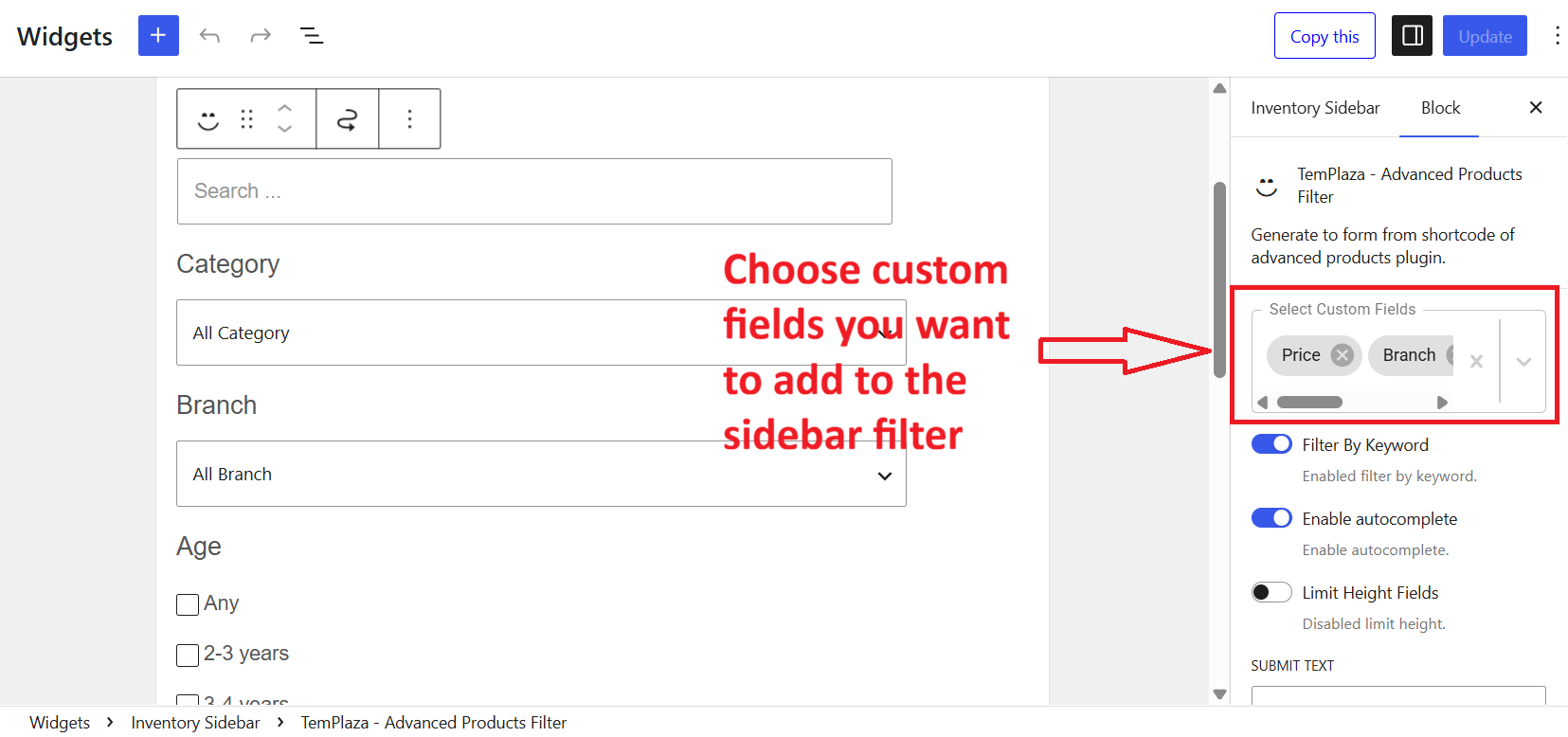
- Select Custom Fields: Here you can select custom fields that you want to display on the filter.
- Key Word: Enable this option to display the search by keyword.
- Limit height field: Enable this option to limit the filter height in case you set up a horizontal filter.
- Submit text: Edit the Search Court text.
- Use Ajax Filtering: no filter button needed.
- Update URL: Enable this option when you want to update the url after selecting filter attributes.
General Settings
- Max height: Set the max height of the sidebar filter
- Large Desktop Columns: Set the number of products per row on large desktops (1600px and larger)
- Desktop Columns: Set the number of products per row (1200px and larger)
- Laptop Columns: Set the number of products per row (960px and larger)
- Tablet Columns: Set the number of products per row (640px and larger)
- Mobile Columns: Set the number of products per row on mobile phones
Assign the widget to a template
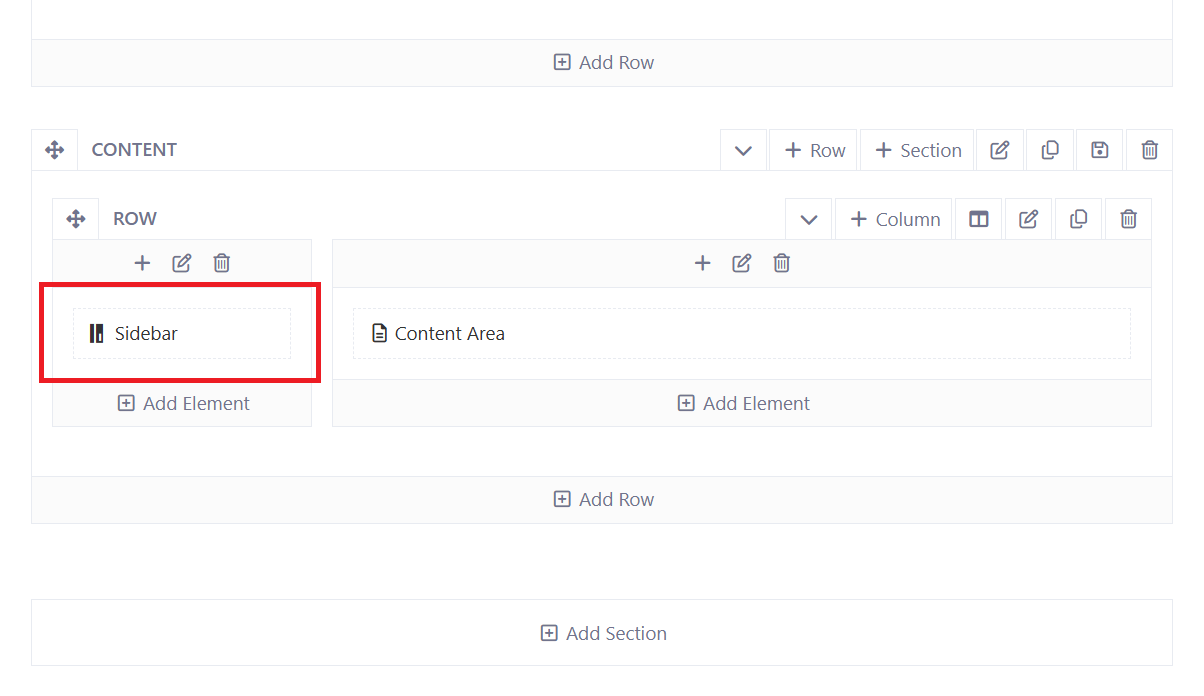
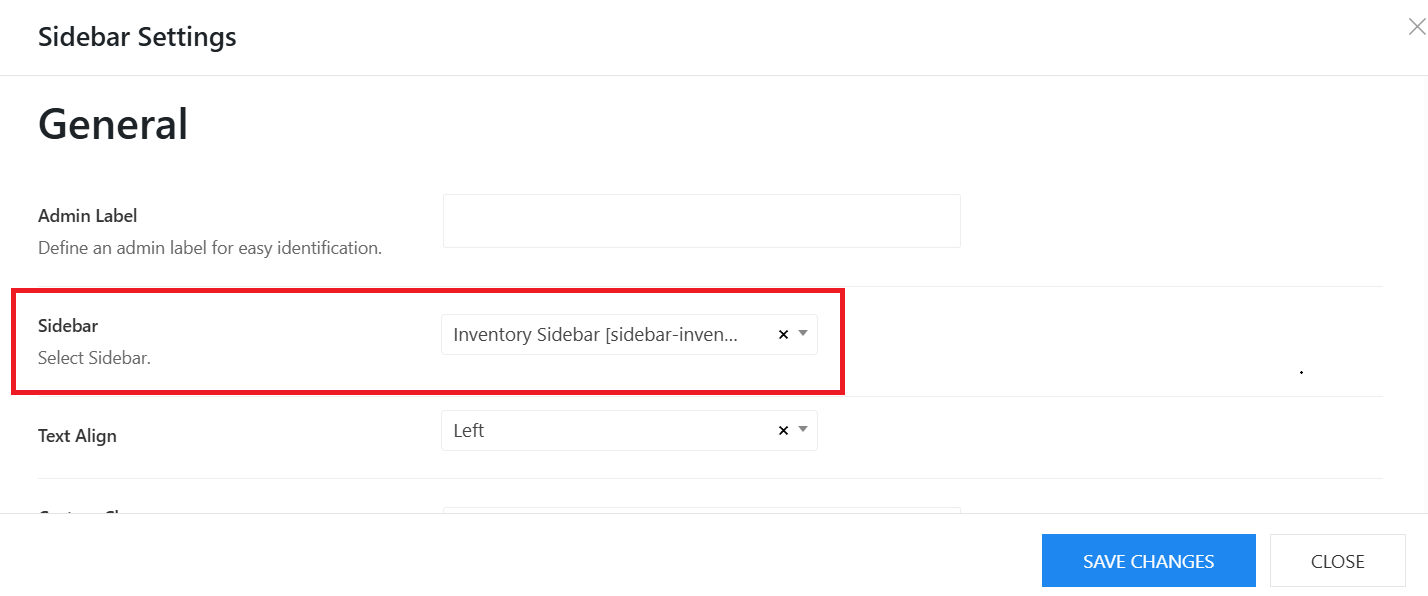
The inventory Sidebar is created for Our Classes page. So to help this sidebar to display properly on the page, we need to add it to a corresponding template "Our Classes". Please go to Kandei Options > Templates > Edit "Our Classes" template > Layout > edit the sidebar column > choose a sidebar widget.