Inventory - Single Room
Single room template assignment
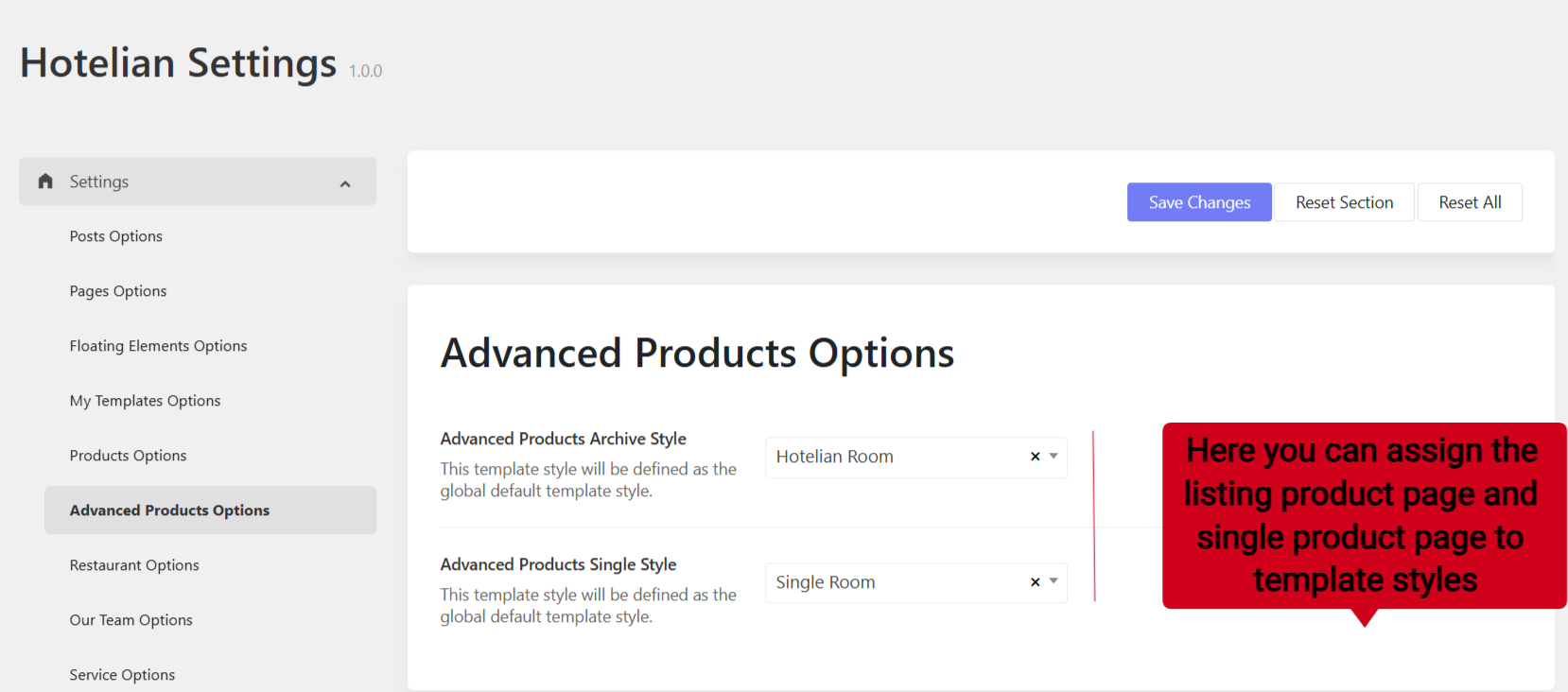
You can go to Hotelian Options > Settings > Settings > Advanced Products page > you can choose specific templates for the archive page "Room Grid" and for the single product page " single room"
Header's background
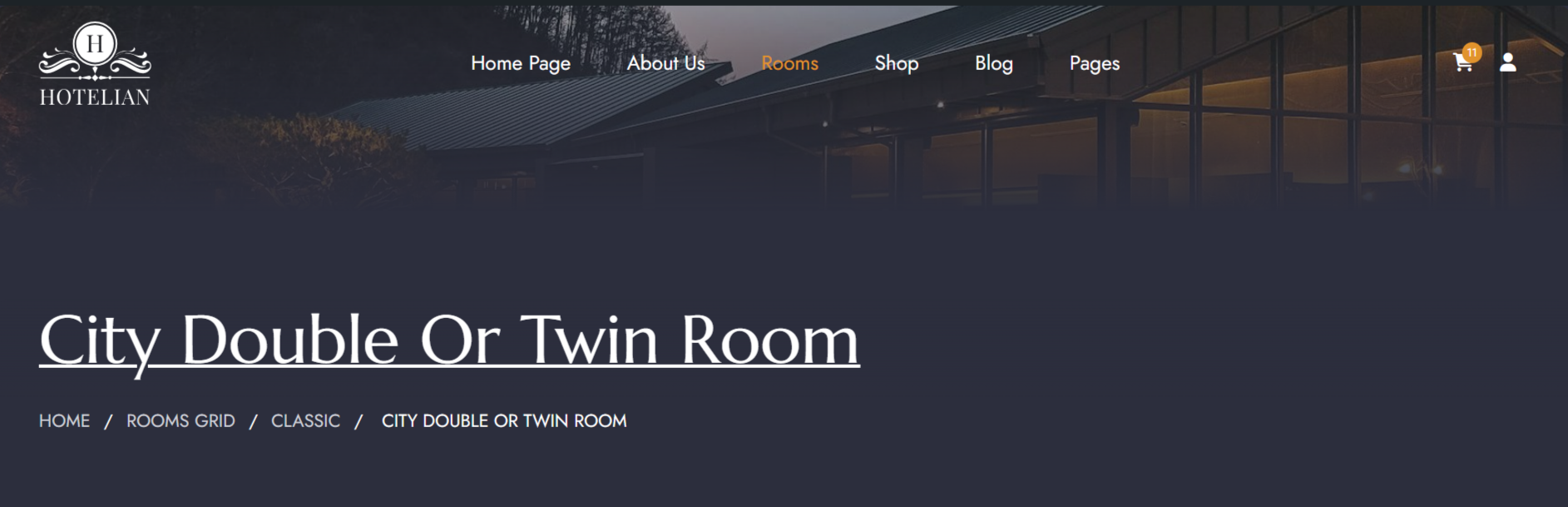
The single room template is assigned to the Default header, so to change the background image of the header, you should go to Hotelian Options > Headers > edit the default header (with yellow star icon). Edit the header layout > Edit the section > Design settings > change the background image.
Booking Options
You can see the demo room booking coming with an online booking form and an inquiry form.
Online booking form
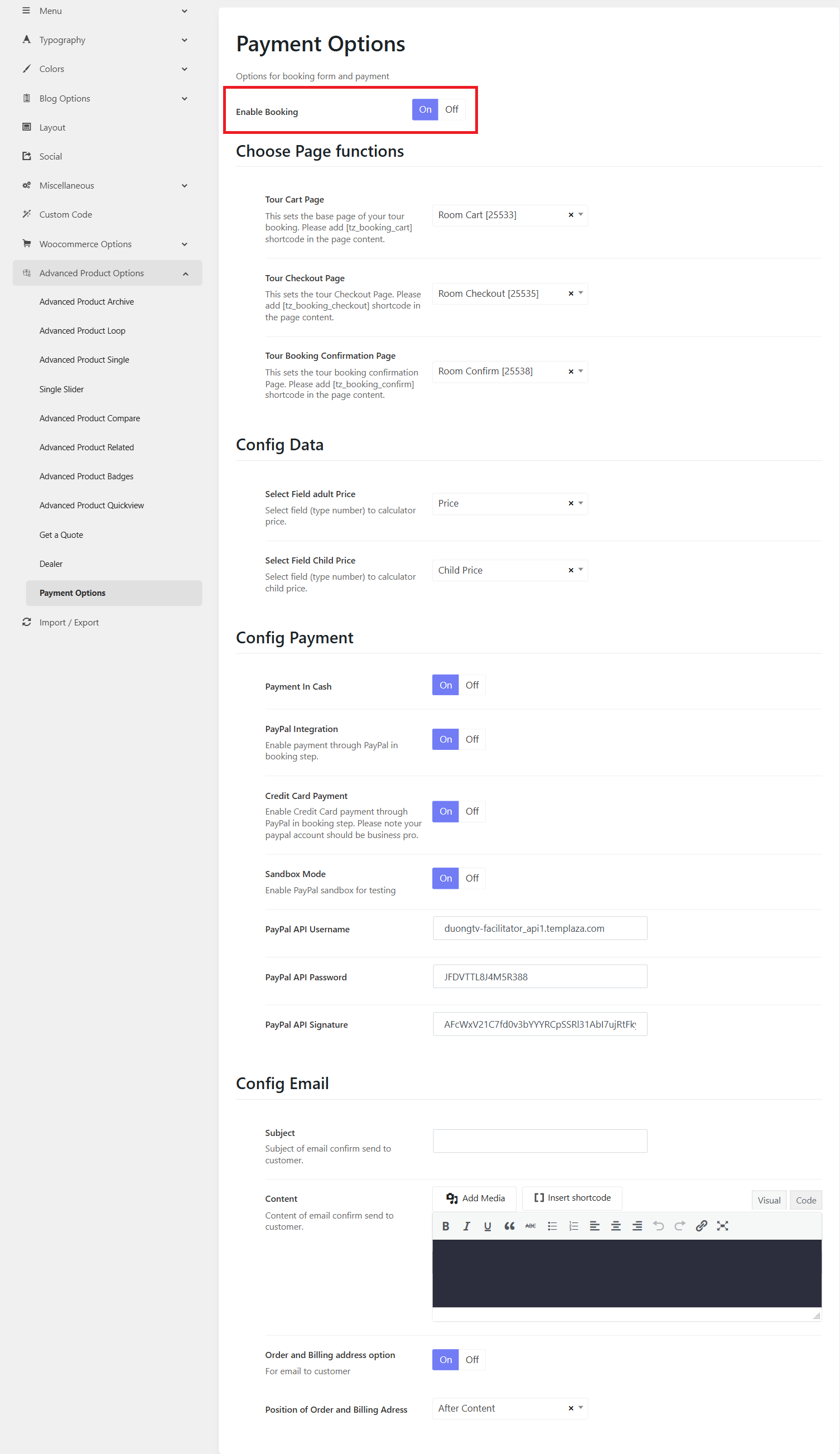
You can go to Hotelian Options > Settings > Advanced Products Options > Payments. Here you can enable or disable the payment options. If you enable the option, the booking form will appear in single tours. You can find settings relating to: page function, Email, booking data,and payment.
Tour Inquiry
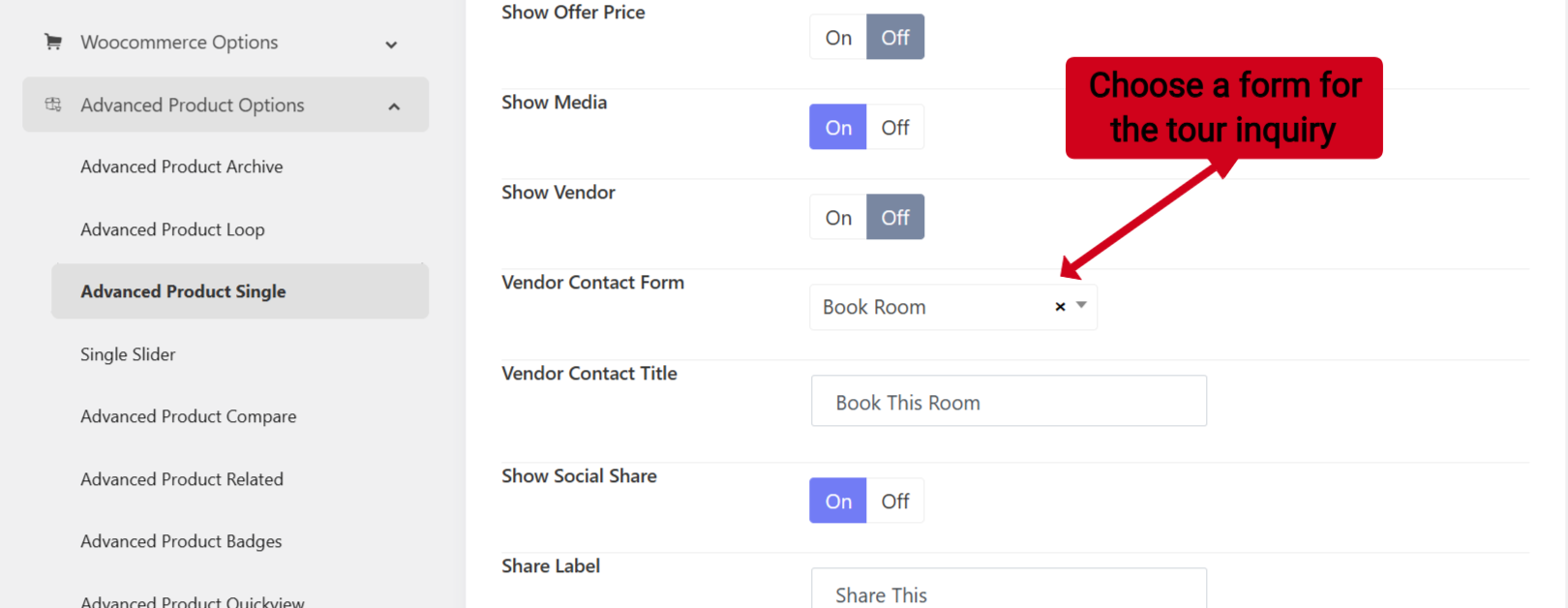
To enable the tour inquiry, please go to Hotelian Options > Settings > Advanced Products Options > Advanced Products Single. Here you can choose the Contact vendor form option (Choose Book Room form). This inquiry form was created with WPforms, so you're supposed to go to WPforms > edit the Book Room form.
How to change the order of tour feature tabs
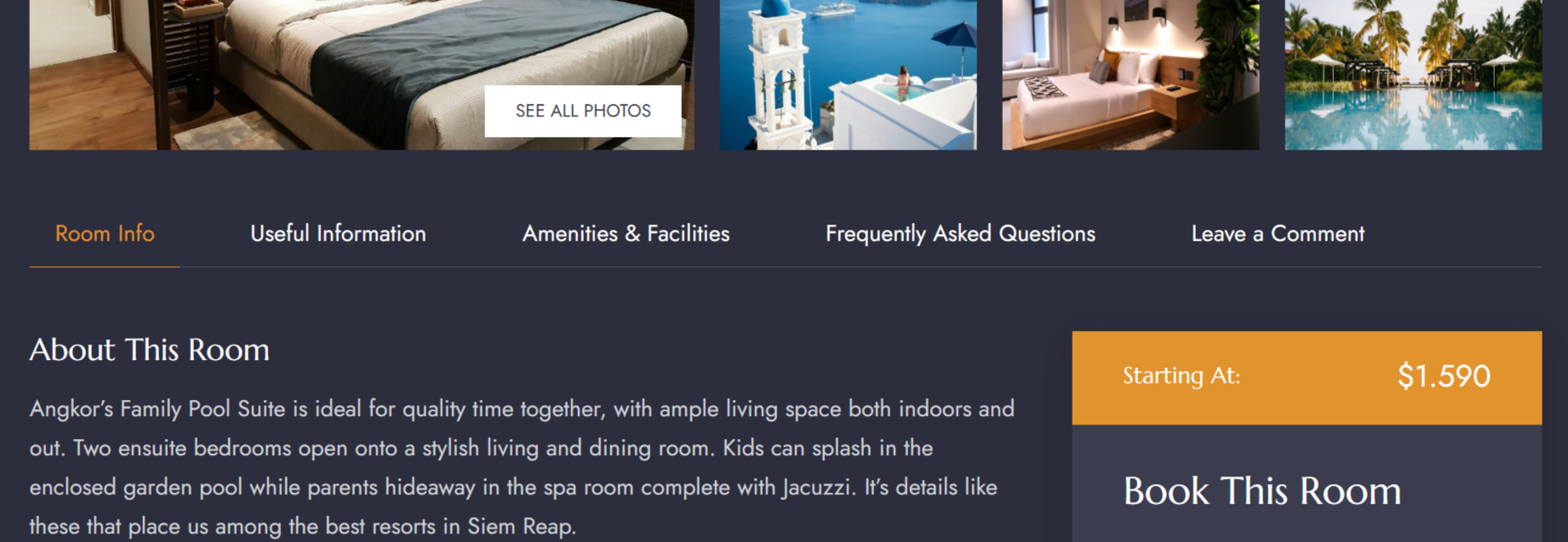
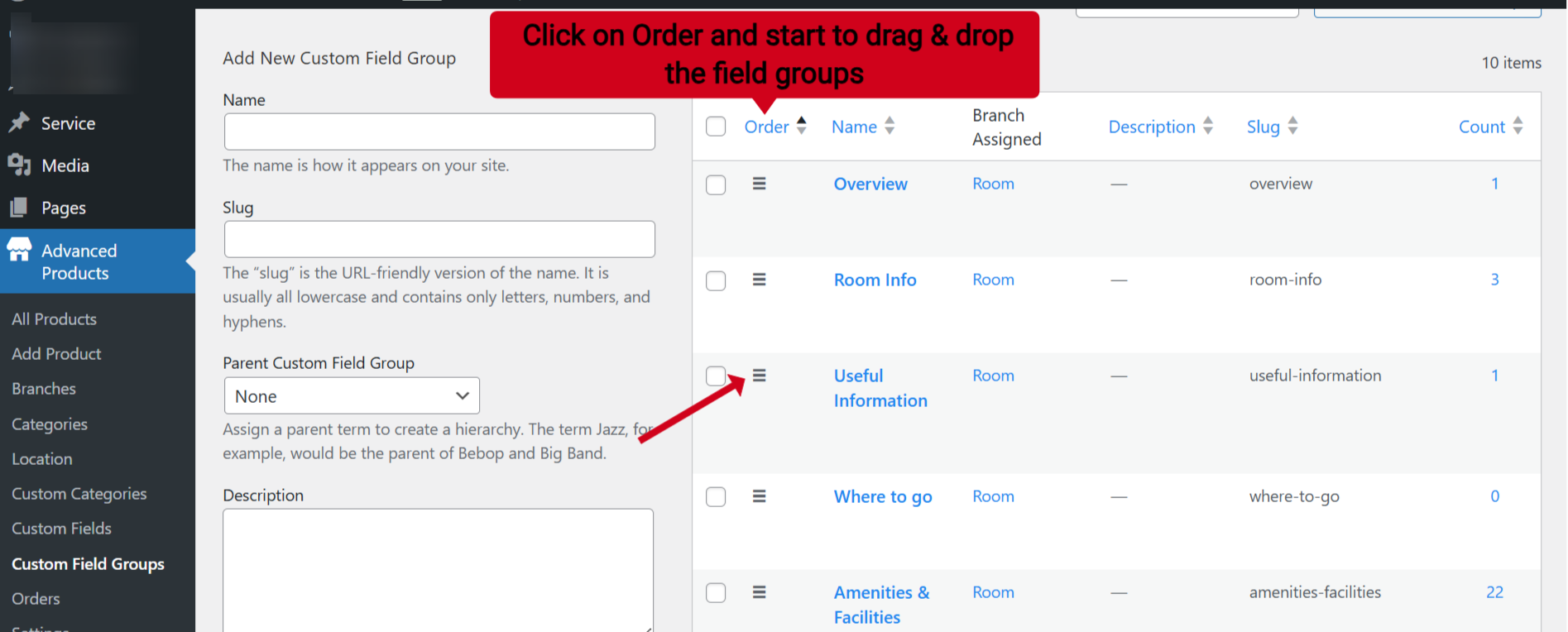
To change the order of the feature tabs, you can go to Advanced Products plugin > Custom Field groups > Click on "Order" > Then start to drag & drop the hamburger icon in front of each field group to reorder its position.
How to disable the comment section
Go to Hotelian options > Settings > Advanced Products Options > Advanced Products Single > You can find the "Show Comment" option. You can enable or disable the comment section on each single room page here.