How to change a breadcrumb image
You can see a breadcrumb section available on inner pages and it contains a background image.

So to change this background image, please go to Kandei Options > Templates > Open each template.
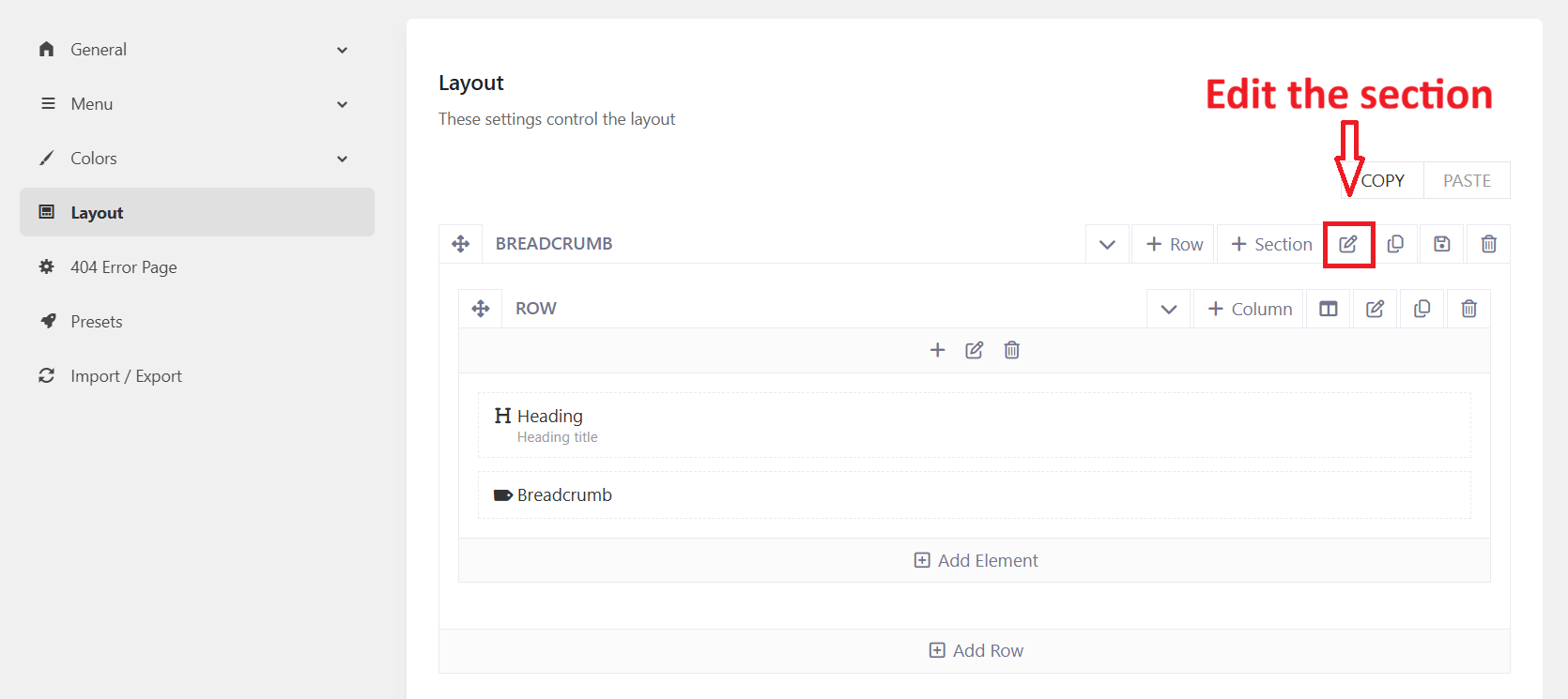
- You should go to Kandei Options > Templates > ex: Our Classes > Layout.
- Edit the Breadcrumb section > Design Settings tab > Change the background image.
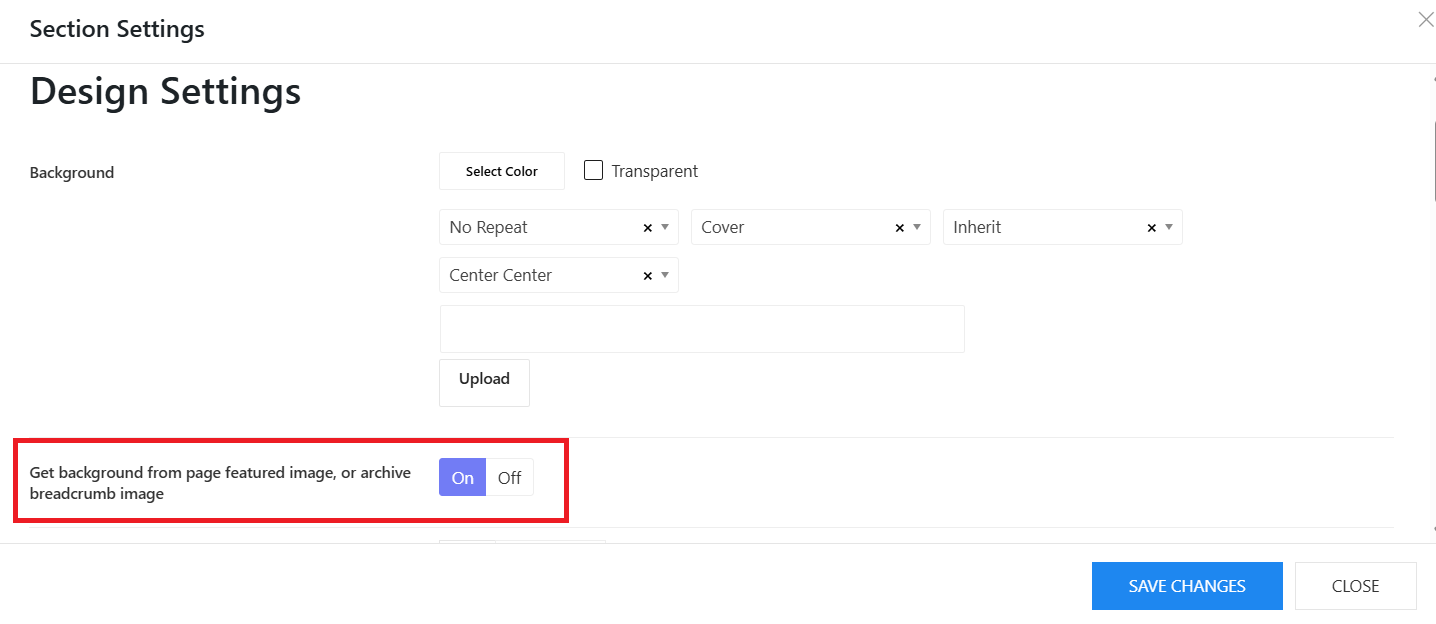
- Get background from page featured image, or archive breadcrumb image: If you upload a featured image for a page, this option will display the featured image in the breadcrumb section.
- Background Overlay: Change the background overlay of the breadcrumb image
- Background Overlay Gradient Top: Set the gradient color top
- Background Overlay Gradient Bottom: Set the gradient color bottom
- Border: Adjust the breadcrumb's border
- Border Radius: Set the border radius of the breadcrumb image. If you don't want the border radius, set 0 for all.
Create different breadcrumb images on various pages
In case you're not fond of having the same breadcrumb image on many pages, you can refer to my below suggestion.
Enable the Featured Image option
You can go to Kandei Options > Templates > Edit a template assigned to your page. Ex: The About Us page is assigned to No Sidebar template. Then you're supposed to edit No Sidebar template.
- Edit No Sidebar template > Layout > edit Breadcrumb section > Design settings tab > Enable Get background from page featured image, or archive breadcrumb image.
Upload Featured Image
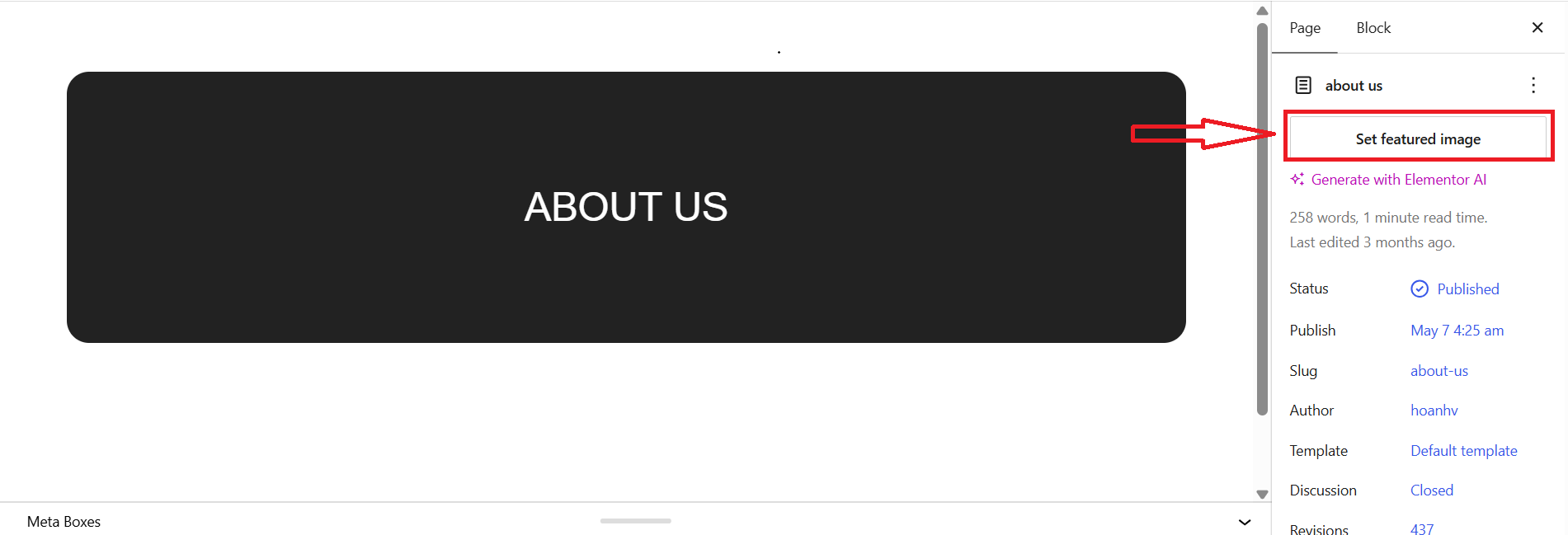
After enabling the option, you should go to Pages > edit a page (assigned to the template above) > Upload Featured Image.
Another Solution
- You can duplicate a template, and change its breadcrumb image
- Go to Pages > Edit your page > Assign the page to a corresponding template by choosing a TemPlaza style.