Global Colors
Global Colors are a centralized color management system that allows you to define reusable color variables for your website. Instead of manually selecting colors for every element, you can create a set of global colors and use them throughout your theme, layouts, and widgets.
This ensures:
- Consistent branding across your website.
- Faster design workflow by reusing predefined colors.
- Easy maintenance since updating a global color automatically updates all elements using that color.
How to locate the global color options: From Theme Options > Global Color > There you can configure your global color palette.
How Global Colors Work
- Create a color and give it a meaningful name (e.g., Primary Color, Accent Color, Heading Color).
- Save the color in the Global Colors panel.
- Use the global color wherever color selection is available within the framework.
- When you update a global color later, every element linked to that color will automatically inherit the new value.
If buttons, links, and highlights use Primary Color, changing it from #C6783E to #0066CC will update all those elements instantly.
Custom Colors Section
The Custom Colors tab allows you to create and manage your global color palette.
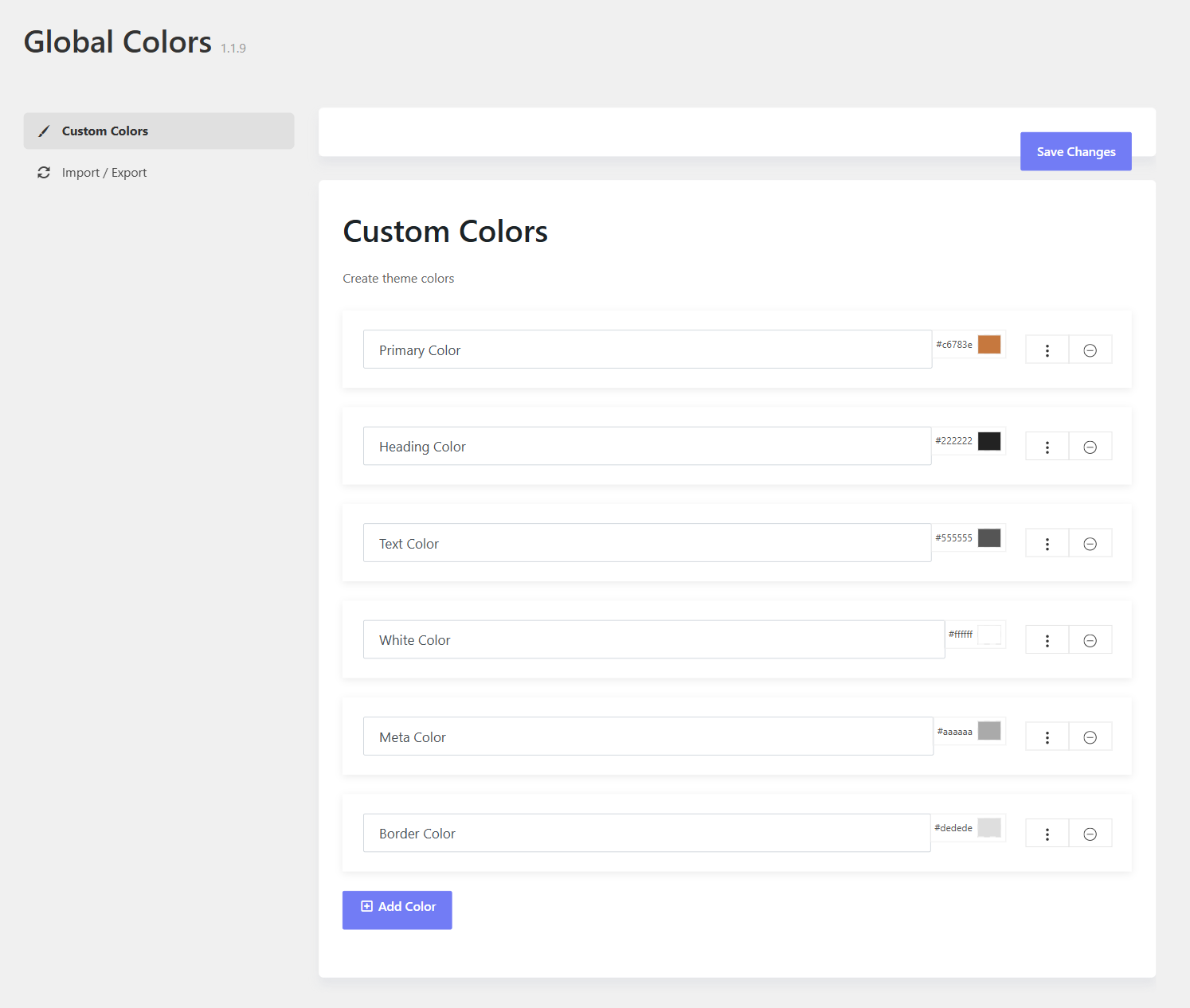
Color Name
Purpose: Identifies the color variable.
Examples:
- Primary Color
- Secondary Color
- Heading Color
- Text Color
- Accent Color
- Success Color
Choose descriptive names so the color's purpose is clear throughout the design process.
Color Value
To define the actual color, you can:
- Click the color swatch to open the color picker.
- Enter a HEX color code manually (e.g.,
#222222).
Example Colors:
#C6783E– Brand Accent#222222– Headings#555555– Body Text#FFFFFF– White#DEDEDE– Borders
Reorder Colors
Use the drag handle (⋮⋮) to move colors up or down, so as to organizes your color list.
Tips
- Place frequently used colors at the top.
- Group related brand colors together.
Delete Color
If there is an unused global color, Click the Delete (-) button beside a color to remove it.
Note: Deleting a global color may affect elements currently using that color.
Add Color
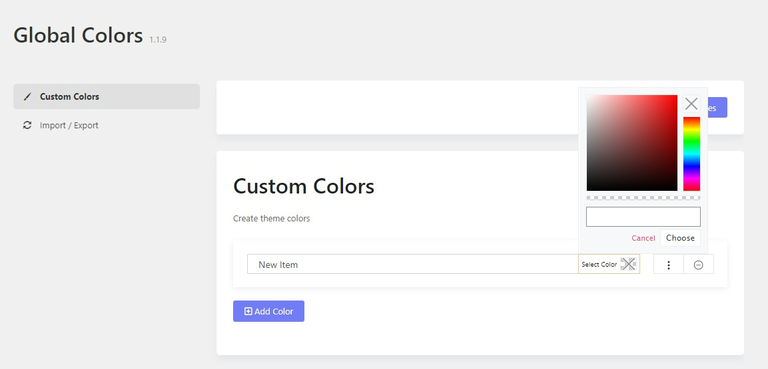
Purpose: Creates a new global color variable.
- Click Add Color.
- Enter a name.
- Choose a color value.
- Save your changes.
Save Changes
After creating, editing, or deleting colors, click Save Changes to store your updates.
Import / Export
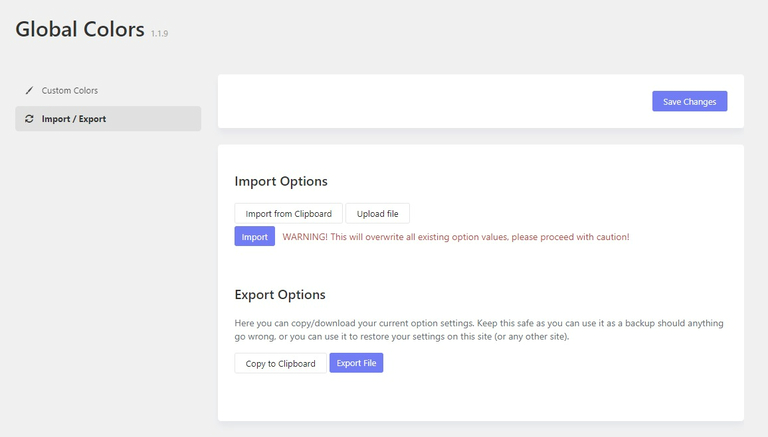
The Import / Export feature allows you to transfer global color palettes between websites.
Export
Exports your current color palette into a file.
Useful when:
- Creating backups.
- Reusing branding across multiple websites.
- Sharing color schemes with team members.
Import
Imports a previously exported color palette.
Useful when:
- Migrating a website.
- Applying an existing brand identity.
- Synchronizing colors across projects.
Recommended Global Color Setup
A typical website may use the following color structure:
| Color Name | Purpose |
|---|---|
| Primary Color | Buttons, links, highlights |
| Secondary Color | Secondary actions |
| Heading Color | Page titles and headings |
| Text Color | Paragraph text |
| Meta Color | Metadata and small text |
| Border Color | Dividers and borders |
| White Color | Light backgrounds and text |
Best Practices
✅ Use Global Colors instead of custom colors whenever possible.
✅ Name colors by their purpose (Primary, Heading, Text) rather than by the color itself (Blue, Red).
✅ Limit your palette to maintain visual consistency.
✅ Update colors through Global Colors when rebranding your website.
✅ Export your color palette as a backup before making major changes.